Nineteen kinds of chart in five families. Every option one click away.

Pick a family, then flick the switches — column, bar, line, bridge and scatter, the way the add-in's own gallery sorts them.
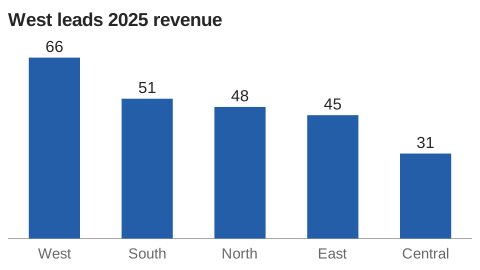
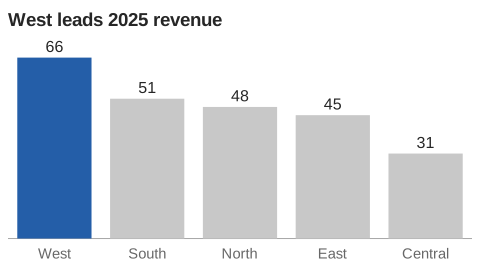
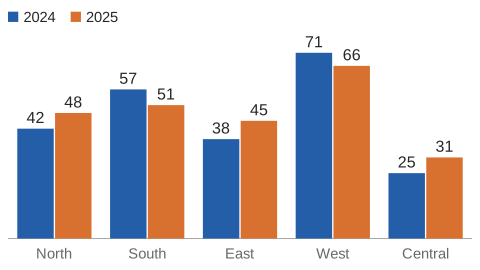
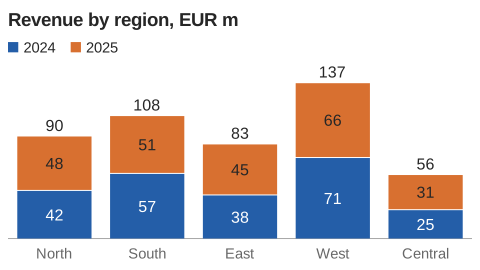
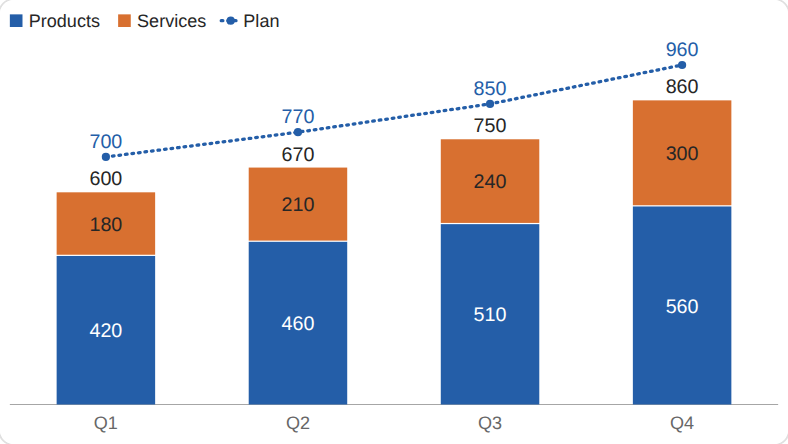
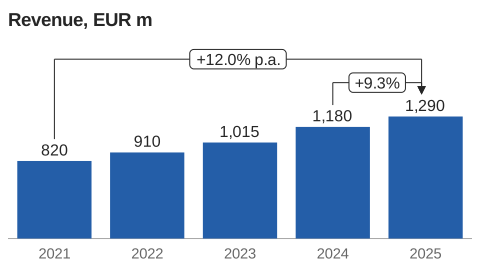
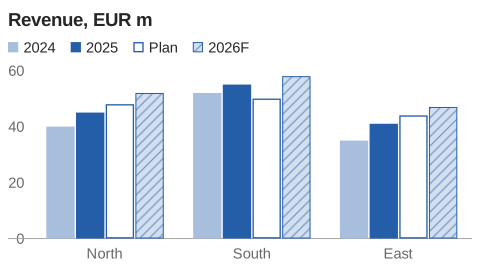
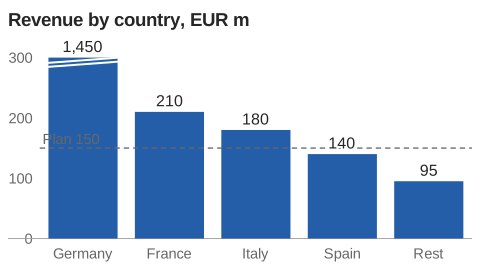
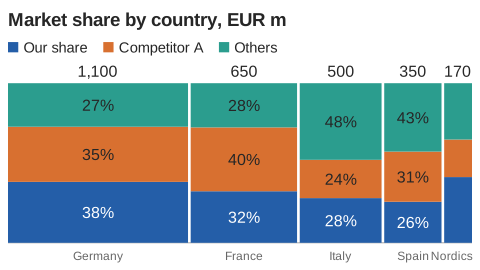
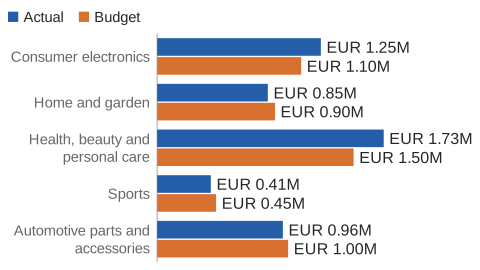
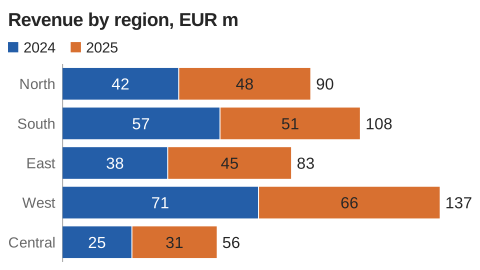
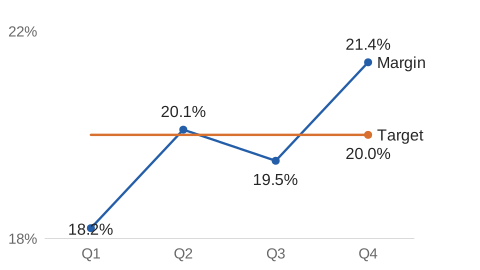
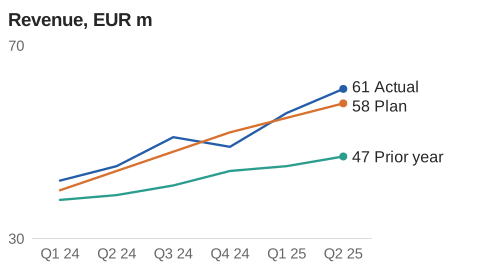
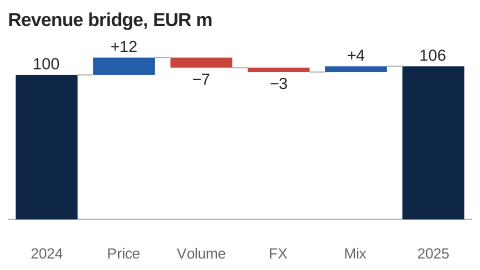
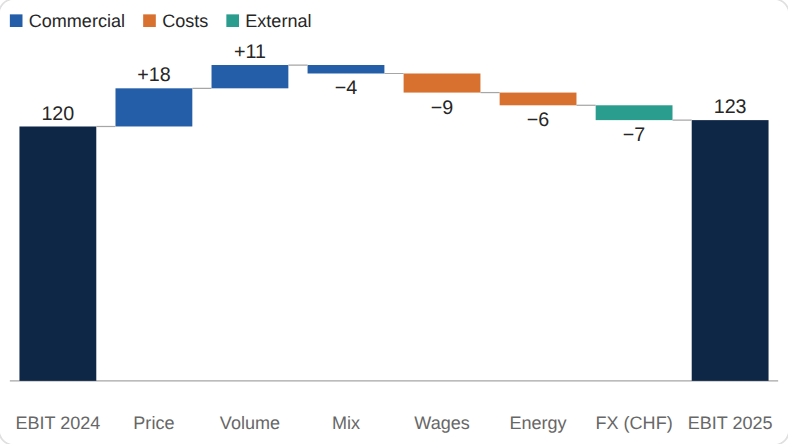
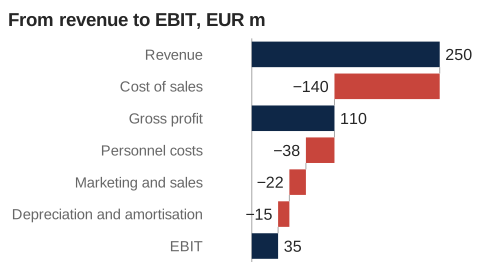
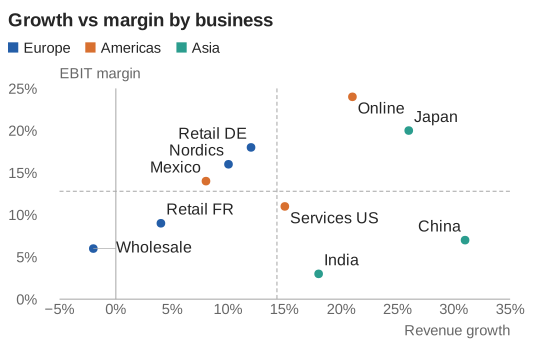
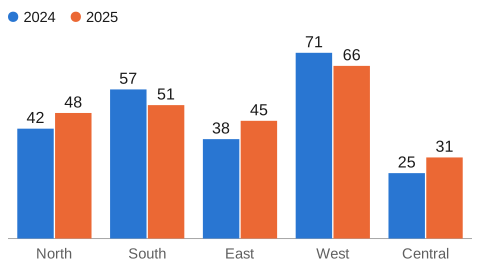
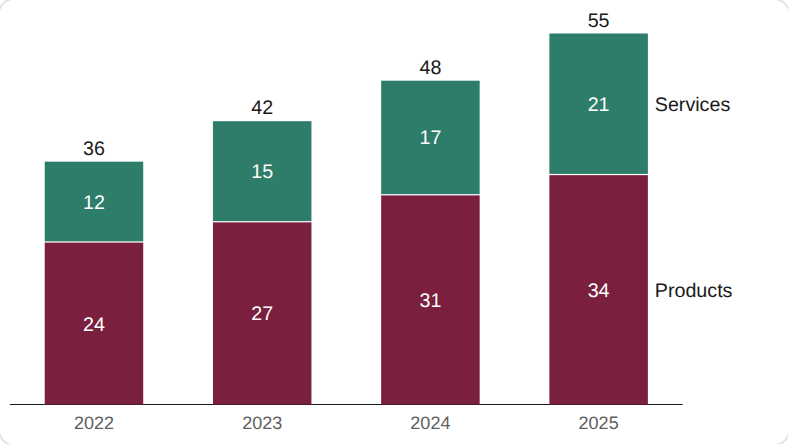
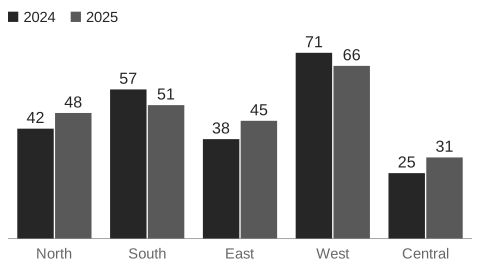
Column chart, West leads 2025 revenue Column chart with one column highlighted Clustered column chart with 2024 and 2025 series Stacked column chart Stacked columns with a plan line across them Column chart with a +9.3% bracket and +12.0% per year arrow Columns for 2024, 2025, an outlined plan and a hatched forecast Columns with a plan line and the tallest column cut off Mekko chart of four markets Bar chart with long labels Stacked bar chart by region Line chart with actual, plan and forecast Line chart with labels at the line ends Waterfall chart EBIT waterfall with steps grouped by colour Sideways waterfall from revenue to EBIT Three lines indexed to 100 in 2019 Weekly line with a bold five-week average over it Revenue and EBIT margin lines, each on its own scale Scatter chart with quadrants Bubble chart of six markets Scatter chart with a trend line and its R squared Scatter chart with arrows from 2024 to 2025
{{ exCap }} {{ exPos }}

In the data window

Make this in PowerPoint or Excel — Get Rubus

Each switch is a control in Rubus's data window. Pick one to see what it does.

Four looks

Match presentation takes the colours and fonts of the deck you're in. Or pick one of three, and tick "Use for new charts".
Match presentation look
Match presentation — your deck's colours and fonts
Balanced look
Balanced — the default
Grayscale look
Grayscale — for print
Bright look
Bright — for the back row

The things you'd otherwise draw by hand.

Flick the switches. They combine, the way they do in the data window, and each one is a single click in Rubus.

{{ stAlt }}
A sketch drawn in your browser to show what each control does. In Rubus, these live in the data window's ribbon — Numbers, Chart, Add, Layout, Series — and on the card that opens when you click a bar.

In the data window

Column width
Colour, entire series

Make this in PowerPoint or Excel — Get Rubus

New · late October 2026

Recently added to Rubus.

One page in the pane

No tabs: the Data window on top, then title, theme, labels, legend and units as small pictures. Everything down to Insert fits without scrolling.

Value jump and level difference

Comparison arrows drawn the way consultants draw them — the number in a box, the % in brackets under it. Drag an arrow in the data window to move it.

Gap between bars

Set the gap as a share of a bar, like Excel’s Gap Width, in five steps from tight to airy. A few bars now fill the chart’s height.

Bold, coloured totals

Click a total to make every total bold or give them a colour. Click a number to set that series’ values: which ones, size, bold, colour.

Thousands without the K

Choose 10³, 10⁶ or 10⁹ and the numbers stay plain; the subtitle says “in thousands”.

Names on two lines

Press Alt+Enter (Option+Return on a Mac) in a name to break the line. The right axis takes its own name too.

Quick in the pane. Thorough in the data window.

The pane beside your slide does the basics in a few clicks. For the table and the formatting, Rubus opens a window — the chart at slide size, your numbers beside it, and a ribbon of tools above.
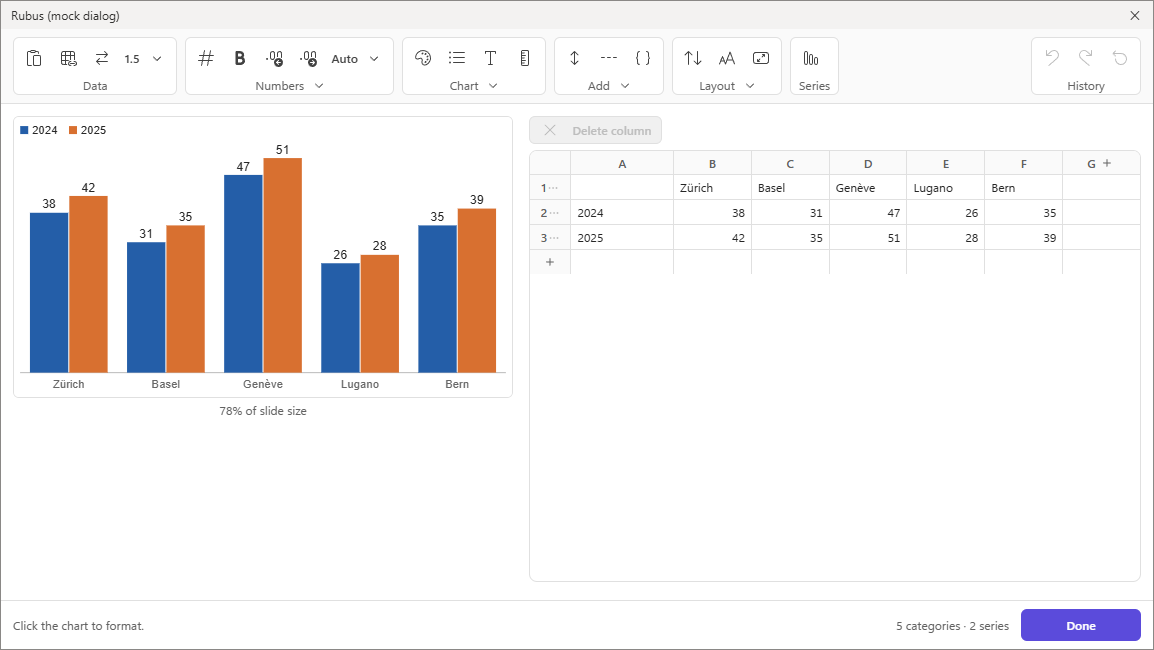
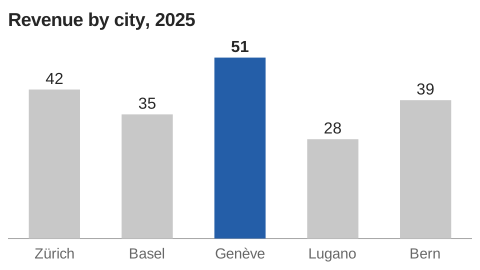
The data window: a ribbon of groups, the chart at slide size, and the table
The data window — a spreadsheet table with Undo, and a ribbon like Office's: Data · Numbers · Chart · Add · Layout · Series · Type · History. Each group has a few tools and a small pane with all its settings.
The pane — one page, no tabs. The Data window on top, then the title, theme, labels, legend and units as small pictures, and Insert. Everything else is a click away in the window.
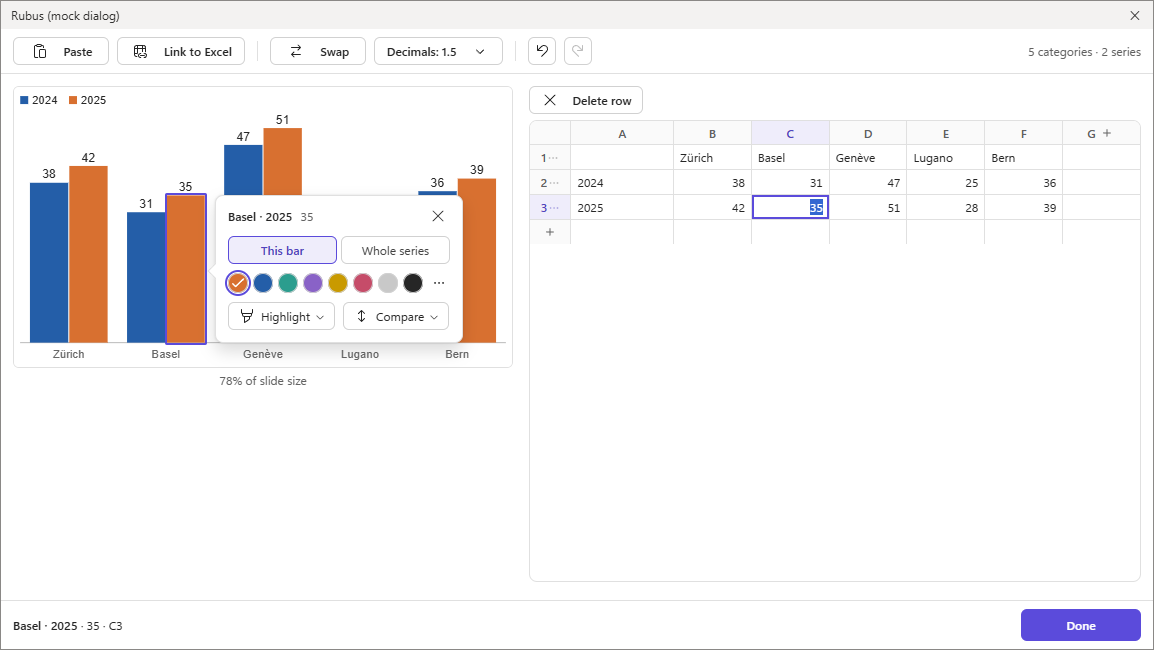
A card beside a clicked bar: This bar or Whole series, colours, Highlight and Compare
Click a bar — a card opens beside it: this bar or the whole series, a colour, Highlight, Compare. Your caret lands in its cell too, so number and bar are never apart.
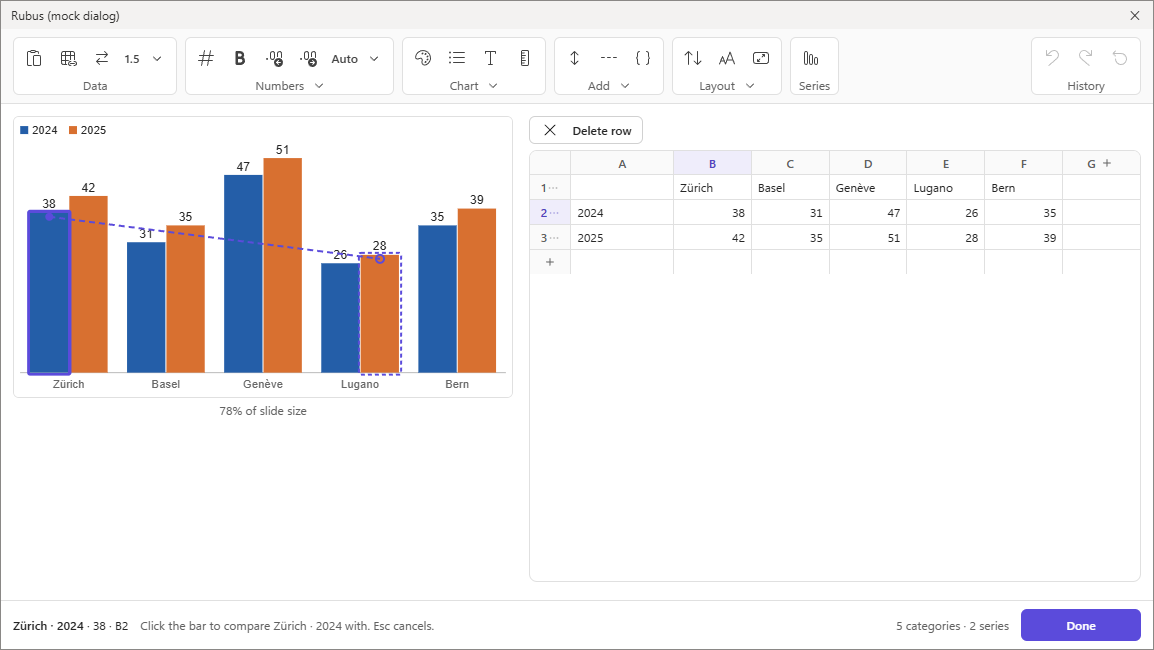
Comparing two bars: a line follows the pointer from the first bar to the second
Compare by pointing — press Compare, click the other bar, and the arrow is drawn: a value jump from bar to bar, or the level difference beside them, in numbers, per cent or CAGR. Drag it where you want it. The same for a brace over a run of bars, or a value line at the average.

The data window is in PowerPoint and Excel on Windows and Mac. In PowerPoint for the web, the pane keeps all the controls itself.

Make your next chart with Rubus.

Get Rubus for Windows Get Rubus for Mac

{{ priceNote }}